 Tidy My Mac
Guide · Updated November 26, 2026
How to allow a network extension on Mac
A firewall, VPN or web filter on a Mac needs two approvals from macOS before it can start: one for its network extension, and one to filter network content. If you clicked OK on the first prompt, the switch is easy to miss in System Settings. Here is where it is, with Tidy My Mac's Firewall as the example.
macOS 15 Sequoia or later · No credit card · Everything runs on your Mac
The short answer: open System Settings › General › Login Items & Extensions, scroll down to Extensions, choose By Category, and click the ⓘ button next to Network Extensions. Switch on the app and click Done. Then, when macOS asks to filter network content, click Allow.
1. Click Open System Settings, not OK
When you turn on the Firewall, Web Protection or Secure Connection in Tidy My Mac for the first time, macOS shows “TidyMyMac” would like to use a new network extension. Click Open System Settings: macOS opens the right switch for you, and you can go straight to step 3.
If you clicked OK, nothing is wrong: the extension is waiting for you. In Tidy My Mac the Firewall says Waiting for your approval, and its Open System Settings button opens Login Items & Extensions for you. Then carry on from step 2.
2. Find Network Extensions in System Settings
- Open System Settings › General › Login Items & Extensions.
- Scroll past Open at Login and Allow in the Background, down to Extensions.
- If you see By App and By Category, choose By Category.
- Click the ⓘ button at the right end of the Network Extensions row.
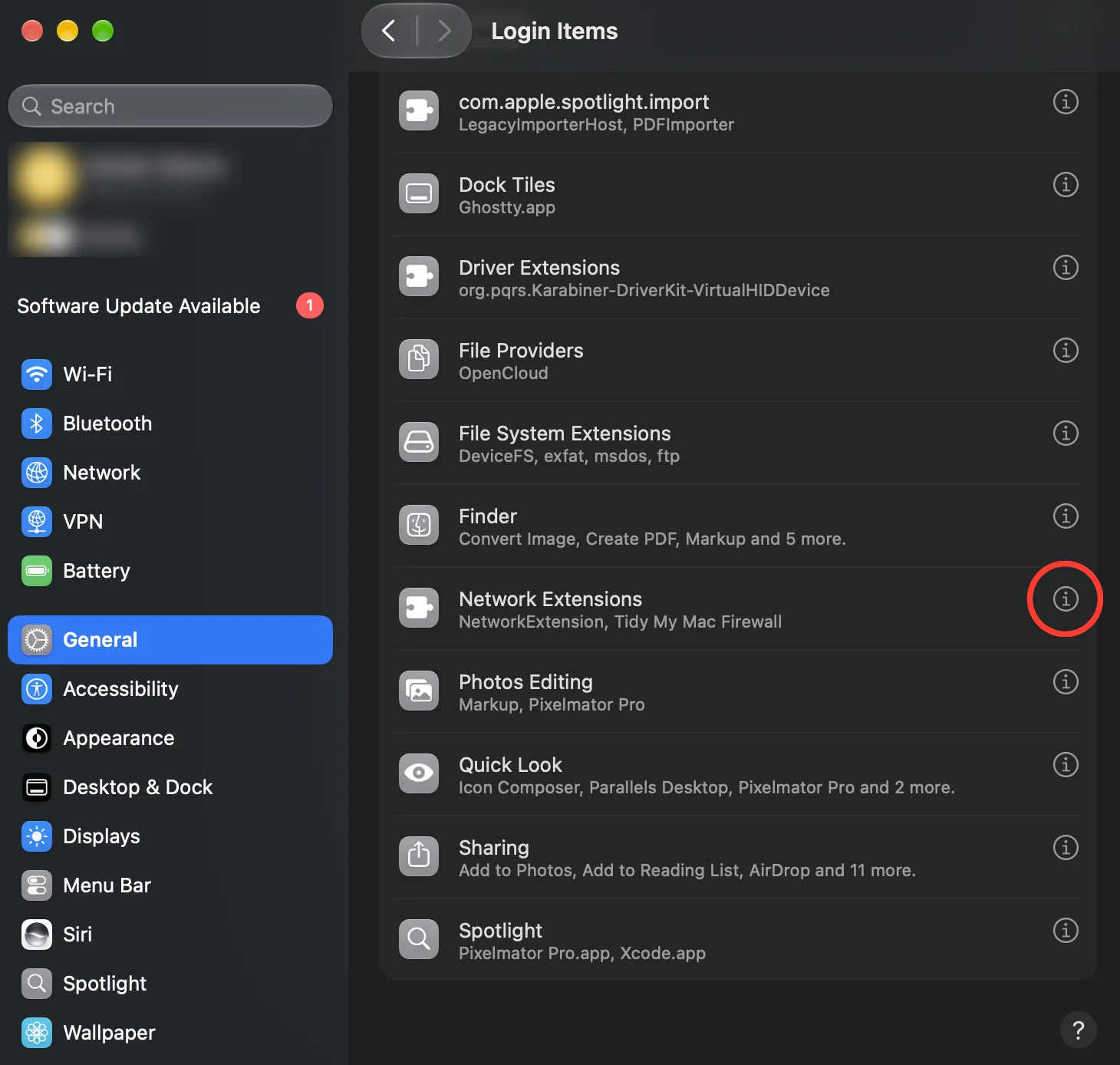
The Allow in the Background list higher up the same page is something else. Tidy My Mac may say Not running in background there; leave its switch on, but it doesn't approve the Firewall.
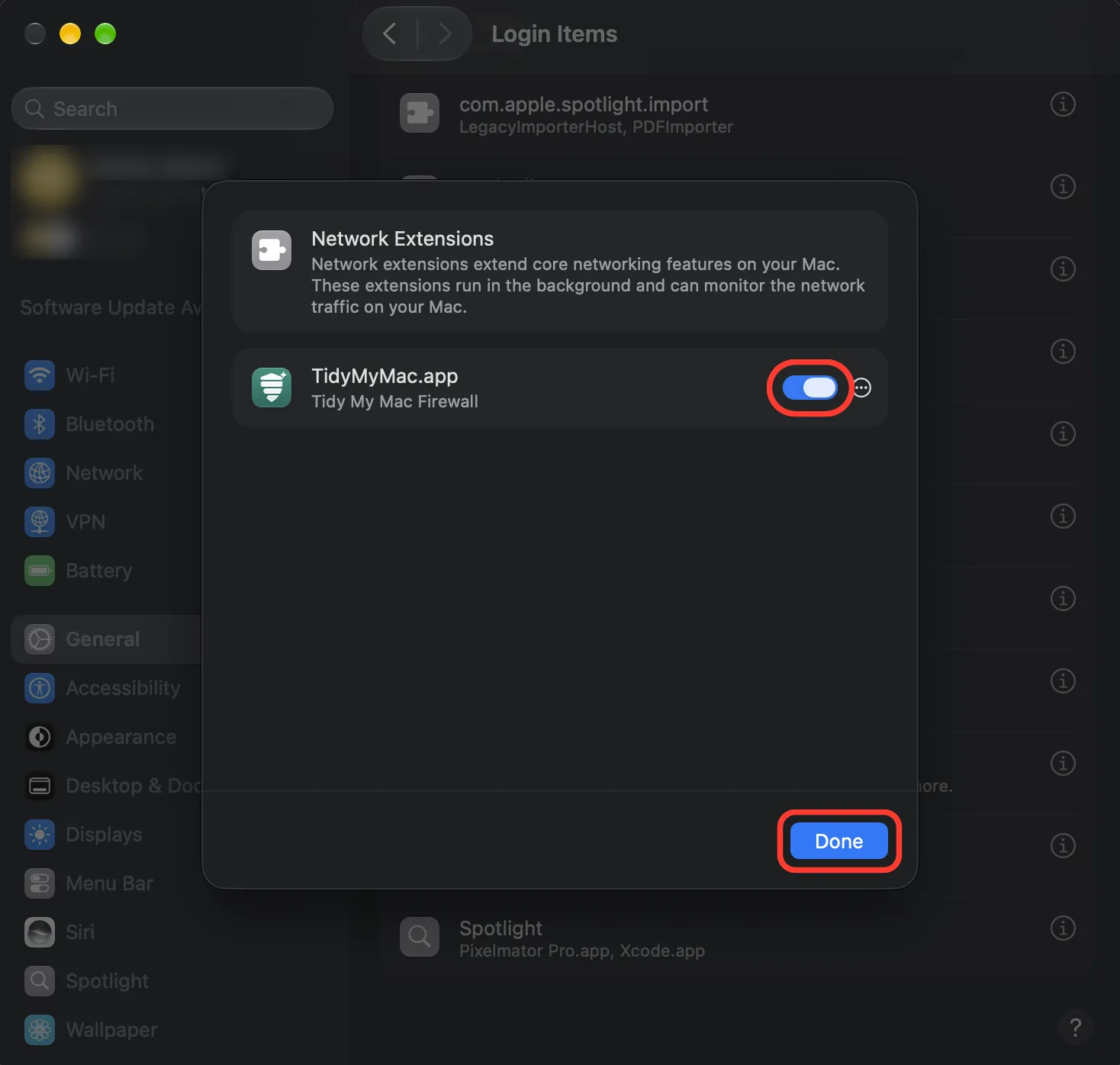
3. Switch on the app, then click Done
In the Network Extensions window, switch on TidyMyMac.app (shown as Tidy My Mac Firewall). Enter your Mac's password or use Touch ID if macOS asks, then click Done.
4. Allow it to filter network content
Back in Tidy My Mac, macOS asks once more: “Tidy My Mac” Would Like to Filter Network Content. Click Allow. Don't Allow is the highlighted button, so pressing Return turns it down. If the prompt doesn't appear, turn the Firewall off and on again.
That's all. The Firewall says it is on, and lists the apps connecting out, each with a Block button. You only need to do this once.
If it still doesn't work
- Tidy My Mac isn't in the Network Extensions list. macOS only loads network extensions from apps in the Applications folder. Move Tidy My Mac there, open it from there, and turn the Firewall on again.
- The switch is grey, or turns itself off. On a Mac managed by a company or school, a profile can block network extensions. Ask the person who manages the Mac to allow it.
- Tidy My Mac is switched on in System Settings, but the Firewall or Web Protection won't stay on. Open System Settings › Network › VPN & Filters. Under Filters & Proxies, set each Tidy My Mac entry to Enabled, then click Turn On again in Tidy My Mac. The video below shows it.
- You clicked Don't Allow. Turn the Firewall off and on again in Tidy My Mac and macOS asks again.
Still stuck? Write to us with a screenshot of the bottom of Login Items & Extensions, and we'll take it from there.
Questions about network extensions
Since macOS 15 Sequoia, in General › Login Items & Extensions, at the bottom of the page under Extensions. Choose By Category and click the info button next to Network Extensions.
No. A content filter only appears in Network settings after both approvals. Switch on the extension in Login Items & Extensions first, then click Allow when macOS asks to filter network content.
A network extension can see your Mac's network traffic, which is what a firewall, VPN or web filter needs to do its job. Allow one only for an app you installed and trust. Tidy My Mac's checks run on your Mac, and it has no telemetry.
Turn the Firewall, Web Protection and Secure Connection off in Tidy My Mac, or switch the app off in the same Network Extensions window. Moving the app to the Trash removes the extension after a restart.
Do it with Tidy My Mac
Firewall
Every domain and IP each app reaches, and one click to block the app or the domain.
Learn more →Web Protection
Phishing, scam and malware sites blocked in every browser and app.
Learn more →Secure Connection
A built-in VPN for public Wi-Fi, on by itself where you don't trust the network.
Learn more →Scan your Mac for malware, free for 7 days.
Just your email, no credit card. Then $19.99 for your first year, $59.99 a year after that.
Scan your Mac free