 Tidy My Mac
Protection · Web Protection
Block phishing, scam and malware sites on your Mac, in every browser
Web Protection blocks phishing and malware sites, scams and fake shops, and ads and trackers for every browser and app on your Mac. It works at the DNS level: each site name your Mac looks up is checked against blocklists stored on your Mac, so the sites you visit are never sent to us or anyone else.
macOS 26 Tahoe or later · No credit card · Everything runs on your Mac
Why block bad sites at the DNS level
A phishing link usually arrives somewhere you can't control: a text message, an email, a QR code, an ad. Browser warnings only cover the browser that has them, and an ad blocker extension only covers the browser it is installed in. Everything else on your Mac, from mail apps to the apps that show you ads, goes without.
Before any app can open a site, it has to look up the site's name. Web Protection sits at that step. When a lookup is for a name on one of your blocklists, your Mac answers it straight away with "not found", and the site simply doesn't load, whichever app asked. That is how it blocks ads in all browsers on your Mac at once, without an extension in each.
Three switches
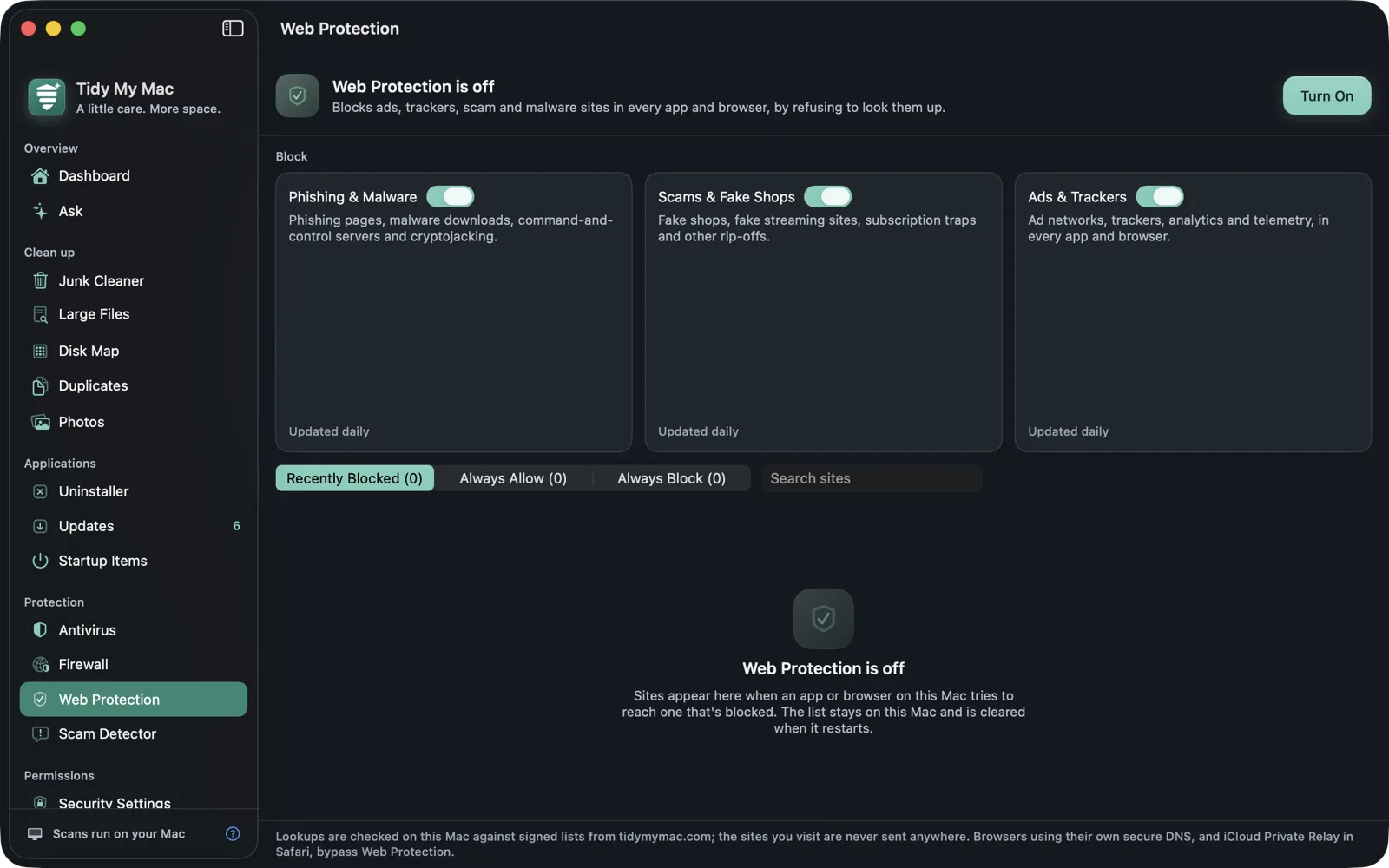
Web Protection's lists come in three categories, each with its own switch. All three are on when you first turn it on.
| Switch | What it blocks |
|---|---|
| Phishing & Malware | Phishing pages, malware downloads, command-and-control servers and cryptojacking. |
| Scams & Fake Shops | Fake shops, fake streaming sites, subscription traps and other rip-offs. |
| Ads & Trackers | Ad networks, trackers, analytics and telemetry, in every app and browser. |
The lists are built from public DNS blocklists: the threat-intelligence and fake-site lists from the HaGeZi DNS blocklists project and abuse.ch's URLhaus list of malware sites for the first two, and HaGeZi's multi list for ads and trackers. Our server rebuilds them from those sources every four hours, so each update your Mac downloads includes the sites reported since the last one.
Lists that keep themselves current
Web Protection runs in a macOS network extension, separate from the app, and the extension downloads the lists itself. They stay up to date while Tidy My Mac is closed, and blocking carries on.
- Lists are updated daily, or weekly if you set that under Settings › Scheduled Scans. Update Lists Now fetches them on the spot.
- An unchanged list isn't downloaded again, and a category is only downloaded while its switch is on.
- The lists come only from tidymymac.com, with a signed manifest. Your Mac checks the signature, and the fingerprint of every list file, before using it. A failed update keeps the last good copy in use.
Each category card shows how many sites its list holds and when it was last updated. A category starts blocking once its list has been downloaded for the first time.
Your own allow and block lists
A blocklist can occasionally catch a site you need. The Recently Blocked tab lists every blocked site name, why it was blocked (Phishing / Malware, Scam, Ad / Tracker or Your list), how many times, and when. Click Allow and it isn't blocked again.
Always Allow and Always Block take any domain, such as example.com, and cover its subdomains too. You can paste a full link; the site name is kept. Your allow list wins over every list, and your block list works even with all three switches off.
The status line counts how many lookups were checked and blocked since your Mac started. The Recently Blocked list is kept in memory on your Mac only and is cleared when it restarts, or when you click Clear.
What it doesn't cover
DNS blocking only sees lookups that go through macOS. A few things go around it:
- Browsers set to use their own secure DNS, such as Chrome's or Firefox's "secure DNS" setting, send their lookups past macOS, so Web Protection doesn't see them.
- Safari with iCloud Private Relay on does the same.
- An ad served from the same site name as the page you are reading can't be told apart from the page, so it isn't blocked.
There is no block page: a blocked site fails to load the way a mistyped address does. If a site you trust stops working, look for it in Recently Blocked.
Turning it on
Click Turn On. macOS asks you to allow Tidy My Mac's extension in System Settings → General → Login Items & Extensions → Network Extensions, if you haven't already for the Firewall, and then to add a proxy configuration. Web Protection then appears in System Settings → Network → Filters & Proxies as Tidy My Mac Web Protection.
Lookups are checked on your Mac. A blocked name is answered on your Mac; every other lookup goes, unchanged, to the DNS server your network already uses, exactly as it would without Web Protection. The only request Web Protection makes is downloading its lists, which sends nothing about the sites you visit. The Privacy Policy describes it.
Questions about Web Protection
Your Mac does, and nobody else. Each lookup is checked against lists stored on your Mac, and the sites you visit are never sent to us or anyone else. Downloading the lists is a download only; the Privacy Policy says exactly what that request contains.
No. Lookups that aren't blocked go to the same DNS server they were addressed to, unchanged. Your Mac keeps using whatever DNS your network or your own settings give it.
In every browser and app that uses macOS for its lookups, with the Ads & Trackers switch on. Browsers using their own secure DNS, and Safari with iCloud Private Relay, bypass it, and ads served from the same site as the page can't be blocked this way.
Find it in Recently Blocked and click Allow, or add it under Always Allow. Allowing a domain also allows its subdomains, and your allow list wins over every blocklist.
Web Protection blocks sites, for every app. The Firewall blocks apps, from every site. They run in the same extension and you can use either or both.
More in Protection
Antivirus
Real-time protection for downloads, full scans, and a quarantine.
Learn more →Ransomware Protection
Spots files being encrypted and stops the program doing it, within seconds.
Learn more →Adware
The profiles, browser policies and proxies that hijack your searches, found and removed.
Learn more →Firewall
See which apps connect out, and block any of them in one click.
Learn more →Scam Detector
Paste a suspicious message and see its red flags.
Learn more →Try every section free for 7 days.
Just your email, no credit card. Then $19.99 for your first year, $59.99 a year after that.
Start your free trial