 Tidy My Mac
Guide · Updated November 8, 2026
Phishing check on Mac: is this link, message or site fake?
A text about a parcel, an email about your Apple Account, a sign-in page that looks just right. Here is how to check a link, a message or a website for phishing on a Mac before you click, sign in or pay, with the tools already on your Mac, and what to do if you already did.
macOS 26 Tahoe or later · No credit card · Everything runs on your Mac
The short answer: read the link's real address before opening it, and check it with Google's Safe Browsing site status or VirusTotal if you are unsure. On a sign-in page, let the Passwords app decide: it fills in your password only on the real site. Never use the link or phone number in an unexpected message; open the company's app or type its address yourself. If you already entered a password, change it now on the real site.
What phishing looks like on a Mac
Phishing is a message or a page that pretends to be a company you trust, so that you sign in, pay, call or install something. It arrives by email, by text in Messages, in social media DMs, as a QR code, and as an ad at the top of search results. The most common ones:
- A parcel couldn't be delivered, and a small fee or new address is needed.
- Your Apple Account, bank or card has been locked or used abroad, and you must confirm your details.
- Your iCloud storage is full and your photos will be deleted.
- A tax refund, toll fee, or unpaid bill from a government office or utility.
- A receipt or subscription renewal you didn't buy, with a number to call to cancel.
- A shop with prices far below everywhere else, or a sale that ends in minutes.
What they share: urgency, and a request to act through the message itself. Good spelling and a real logo prove nothing.
1. Read the link's real address
- In Mail: rest the pointer on the link without clicking. The real address appears after a moment, in a yellow label or at the bottom of the window.
- In Messages: Control-click the link and choose Copy Link, then paste it into a note to read it.
- In Safari: look at the address bar after a page opens. Safari shows only the site's name; click the address bar to see all of it.
Now find the site's real name: it is the part just before the first single /, read from right to left. In https://apple.com.id-verify.top/login the site is id-verify.top, not Apple. In https://amazon.co.jp-account.help it is jp-account.help. Watch for:
- Swapped letters:
app1e.com,rnicrosoft.com(r and n for m),paypa1.com. - Extra words:
apple-support-center.com,secure-mybank-login.net. - Unusual endings such as
.top,.xyz,.clickor.cnfor a company that uses.comor your country's domain. - Link shorteners such as
bit.lythat hide the address. Real companies rarely send them for account problems.
The padlock and “https” only mean the connection is encrypted. Phishing sites have them too.
2. Check the address without opening it
Copy the link and paste it into one of these free checkers. Neither opens the page on your Mac:
- Google Safe Browsing site status: the same list Chrome and Firefox use to warn you. It says whether the site is known to be dangerous right now.
- VirusTotal: checks the address against dozens of security companies' lists at once. One or two hits from little-known vendors can be noise; several, or any for phishing, is a clear no.
A clean result is not a guarantee: new phishing sites go live every hour and many are taken down within a day, before the lists catch up. If the message itself is suspicious, a clean result doesn't make it safe.
3. Let your passwords check the sign-in page
This is the best phishing check on a Mac, and it works even when the fake page looks perfect. The Passwords app and iCloud Keychain fill in a password, or offer a passkey, only on the exact site it was saved for. If you open what looks like your bank's or Apple's sign-in page and Safari offers nothing, the address is not the real one: close the page.
Passkeys go further: they can't be typed into a fake page at all. Where a site offers a passkey, such as Apple, Google, Amazon and many banks, switch to it.
4. Keep the Mac's own warnings on
- Safari: in Safari › Settings › Security, keep Warn when visiting a fraudulent website on. Safari then shows a red full-page warning before known phishing sites. Don't click past it.
- Chrome: in Settings › Privacy and security › Security, keep Safe Browsing on; Enhanced protection checks new sites too.
- Messages: in Messages › Settings, turn on screening of unknown senders (called Filter unknown senders in older versions), so texts from numbers you don't know go to their own list.
- Mail: in Mail › Settings › Privacy, turn on Protect Mail Activity, so opening a message doesn't tell the sender your address is real.
5. Check the message itself
The address it came from, the greeting, and above all what it asks you to do. How to tell if an email is a scam goes through the sender, the links and the headers in Mail, step by step. If you can't tell, go the other way round: open the company's app, or type its address yourself, and look for the same notice there. A real problem with your account is always there too.
Phishing check with Tidy My Mac
The steps above work, but they rely on you remembering them at the moment a message is most convincing. Tidy My Mac does two of them for you:
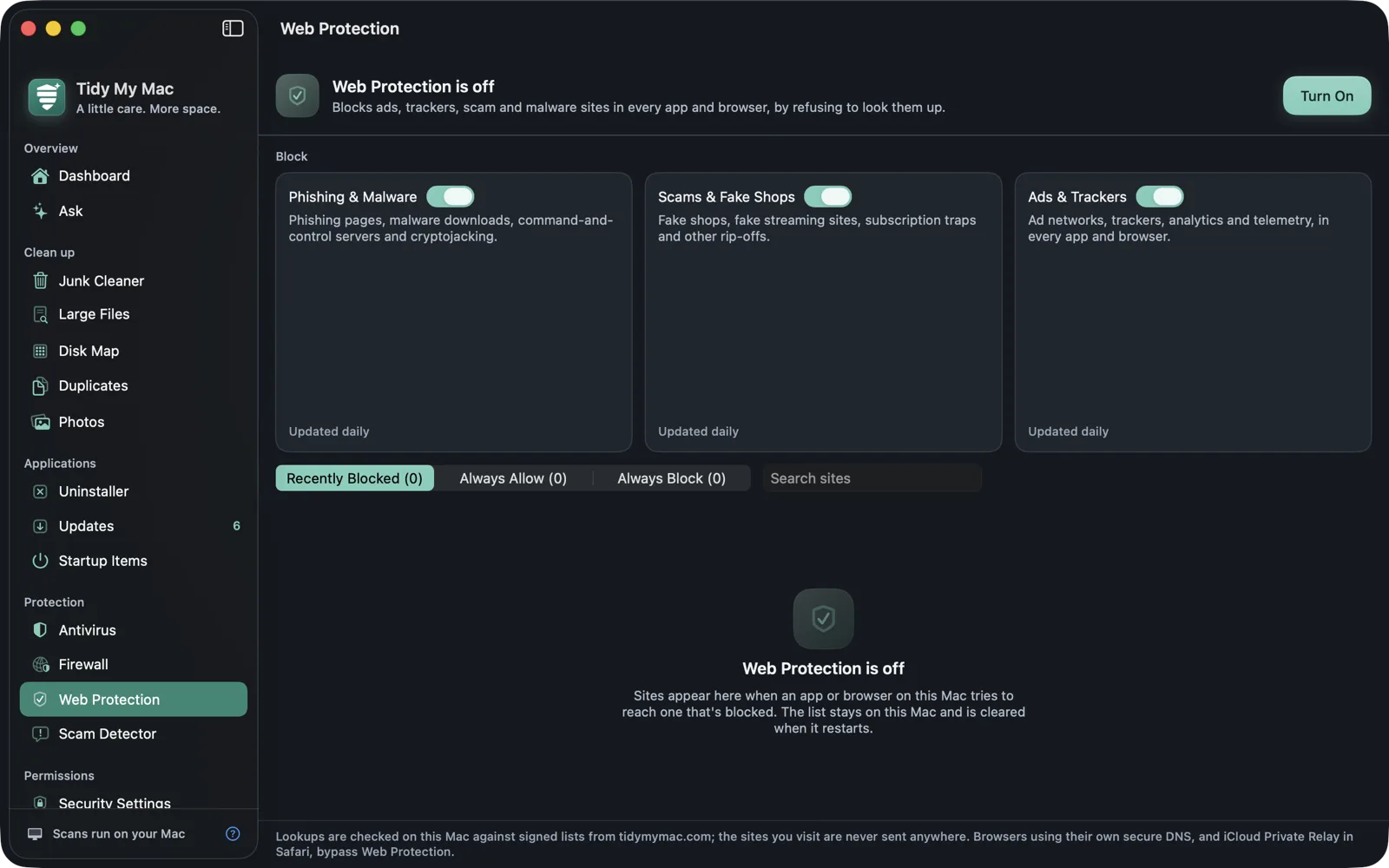
- Web Protection blocks known phishing, scam, fake-shop and malware sites in Safari, Chrome, Firefox and every other app, Mail and Messages included. You don't need a browser extension, and the sites you visit are checked on your Mac, not sent anywhere.
- Scam Detector: paste a suspicious email, text or DM and see how risky it looks and why, pointing to the urgency, the links and what it asks for. With Apple Intelligence the check runs on your Mac.
- If you already clicked and installed something, Antivirus and Adware scan for what phishing pages install, and Browser Extensions lists every extension in every browser.
Try it free for 7 days, no card needed. The scans run on your Mac: your files, messages and the sites you visit are not uploaded. If it finds nothing, that is a good answer too. Scan your Mac free
If you clicked, signed in or paid
- You only opened the link: close the page. On an up-to-date Mac, opening a page rarely does harm on its own. Don't download or allow anything it offers.
- You entered a password: change it now on the real site, and anywhere else you use the same one, then turn on two-factor authentication or a passkey. Check the account's recent sign-ins and, for email, the forwarding rules.
- You entered card or bank details, or a one-time code: call your bank now on the number on your card, and block the card. A one-time code typed into a fake page lets the scammer finish a payment or sign-in.
- You installed something, or let someone control your Mac: disconnect from the internet and go through how to check if your Mac is hacked.
Report it
- Messages pretending to be Apple: forward them to reportphishing@apple.com. In Messages, use Report Junk under the conversation.
- Japan: the Council of Anti-Phishing Japan, info@antiphishing.jp. United States: reportphishing@apwg.org and ReportFraud.ftc.gov. United Kingdom: report@phishing.gov.uk. Germany: phishing@verbraucherzentrale.nrw.
- If you lost money, report it to your bank and to the police as well.
Questions about phishing checks
Rest the pointer on it, or copy it, and read the site name just before the first single slash. Paste the address into Google's Safe Browsing site status or VirusTotal, which check it without opening it. When unsure, open the company's app or type its address yourself instead.
Partly. Safari warns before known fraudulent sites, Messages can filter unknown senders, and the Passwords app fills in passwords only on the real site. Nothing in macOS blocks phishing sites in other apps, or new sites that aren't on the lists yet.
On an up-to-date Mac that is very rare. The harm comes from what you do next: typing a password, a card number or a code, or downloading and opening a file. Keep macOS and your browser updated, and close the page.
No. The padlock only means the connection is encrypted; almost every phishing site has one. Check the site's name in the address instead.
Scan your Mac for malware, free for 7 days.
Just your email, no credit card. Then $19.99 for your first year, $59.99 a year after that.
Scan your Mac free