 Tidy My Mac
Protection · Traffic Growth
Traffic Growth: know when an app starts sending your data out
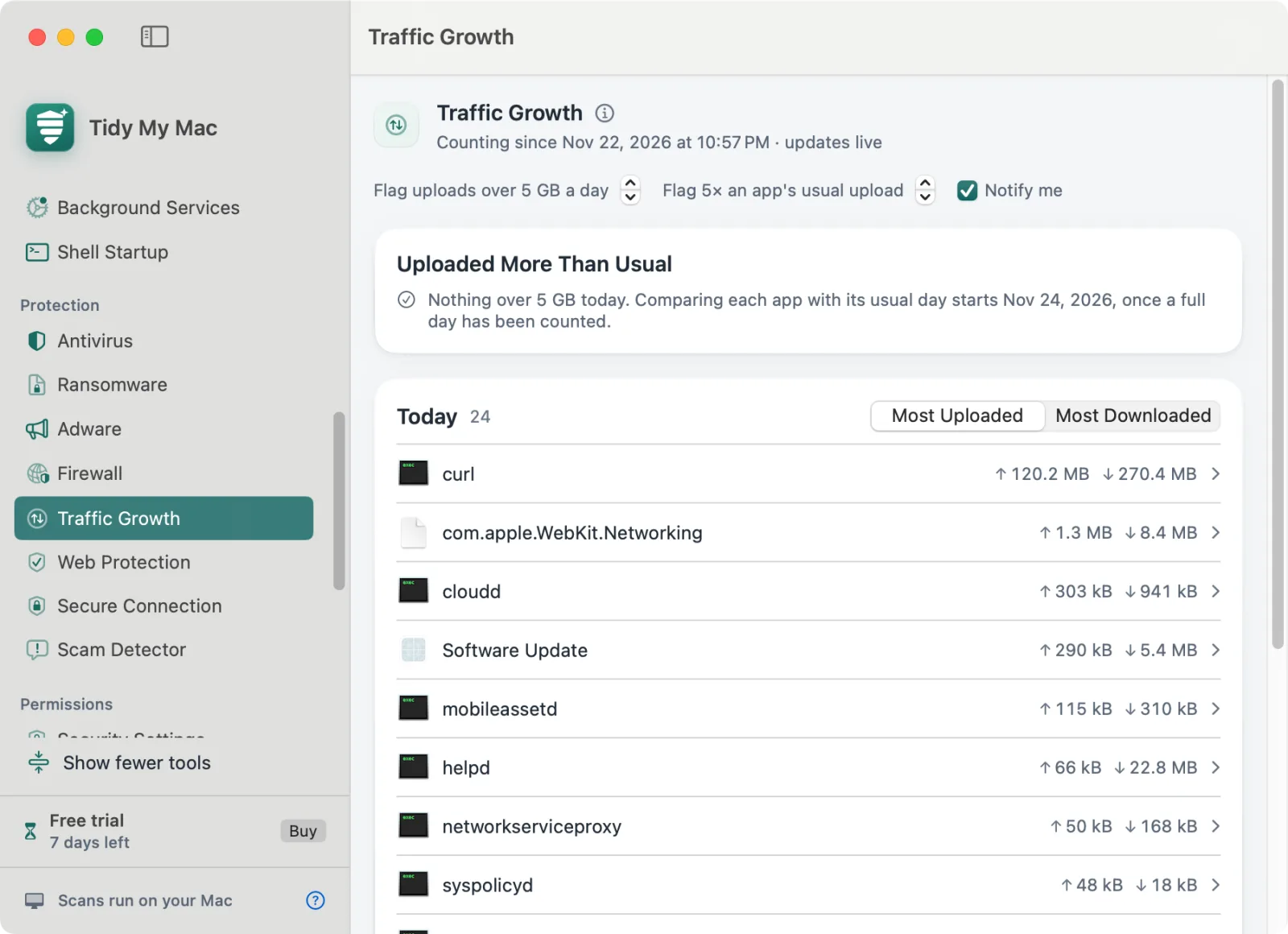
Spyware, info-stealers and ransomware gangs that copy your files before they lock them all have one thing in common: the data has to leave your Mac. Traffic Growth counts how much each app uploads and downloads every day, compares it with that app's usual day, and raises an alarm when one suddenly sends far more than it ever has. You can block it right there.
macOS 15 Sequoia or later · No credit card · Everything runs on your Mac
Why uploads are worth watching
Most malware on a Mac is after something: passwords and browser cookies, crypto wallets, documents, photos. Whatever it takes, it has to upload it somewhere. A new piece of malware may have no signature yet, and an AI-written one may be rewritten for every victim, but it can't hide the fact that a lot of data is suddenly going out.
Your apps' normal behaviour is easy to learn. A note-taking app syncs a few megabytes, a chat app a little more, a backup app a lot, every day. Traffic Growth learns each app's usual day and looks for the one that breaks its pattern.
What the Traffic Growth page shows
- Today: every app that sent or received data today, with how much it sent and received, largest upload first. The amounts update live.
- Usual: each app's average day over the last 7 days, next to today's figure, so a jump is visible at a glance.
- Uploaded More Than Usual: the apps that crossed one of the alarm limits, at the top of the page.
- A two-week chart for each app, with what it sent and received each day.
- Block next to a flagged app cuts it off the network through the Firewall, and Show in Firewall opens the domains and addresses it reached.
When the alarm goes off
An app is flagged, and you get a notification, when it does one of three things in a day:
| Alarm | What it means |
|---|---|
| Over the daily limit | It uploaded more than the daily limit, 5 GB unless you change it, whatever it usually does. |
| Far above usual | It uploaded many times its usual amount, five times unless you change it. |
| First big upload | It uploaded a large amount after sending nothing on the days before. A calculator that suddenly uploads hundreds of megabytes is exactly this. |
Small amounts never set off the multiple or first-upload alarms: going from 1 MB to 6 MB is six times as much, and nothing to worry about. Each app is announced at most once a day, so an alarm means something. The limits and the notifications are set on the page itself.
How it counts, and what it never reads
The amounts come from macOS itself, through the network extension behind Tidy My Mac's Firewall, so Traffic Growth counts while the firewall is on. Turning the firewall on blocks nothing by itself: every app keeps working until you block it.
Only amounts are counted. What an app sent is never read, decrypted or stored, and the counts never leave your Mac.
Traffic Growth is one layer of Tidy My Mac's protection against the new wave of AI-written malware. See how every layer fits together →
Questions about Traffic Growth
macOS doesn't keep a per-app history. Activity Monitor's Network tab shows bytes since each process started, and forgets them when it quits. Tidy My Mac's Traffic Growth keeps a daily total per app, with a two-week chart, and the Firewall can sort apps by most uploaded.
Only when it uploads far more than it usually does, or more than the daily limit. A backup app that uploads gigabytes every day has a high usual, so an ordinary day doesn't flag it. The first full backup after you install one can; raise the daily limit if you upload large amounts on purpose.
No. It counts bytes per app, as macOS reports them. It never looks at the contents, and the counts stay on your Mac.
Traffic is counted by the firewall's network extension, so the firewall needs to be on. Turn it on from the Traffic Growth page; it blocks nothing until you block an app. Comparing each app with its usual day starts once a full day has been counted.
More in Protection
Antivirus
Real-time protection for downloads, full scans, and a quarantine.
Learn more →Ransomware Protection
Spots files being encrypted and stops the program doing it, within seconds.
Learn more →Adware
The profiles, browser policies and proxies that hijack your searches, found and removed.
Learn more →Firewall
Every domain and IP each app reaches, and one click to block the app or the domain.
Learn more →Web Protection
Phishing, scam and malware sites blocked in every browser and app.
Learn more →Secure Connection
A built-in VPN for public Wi-Fi, on by itself where you don't trust the network.
Learn more →Scam Detector
Paste a suspicious message and see its red flags.
Learn more →Try every section free for 7 days.
Just your email, no credit card. Then $19.99 for your first year, $59.99 a year after that.
Start your free trial