 Tidy My Mac
Overview · Dashboard & Smart Scan
Smart Scan: see what is taking up space on your Mac, in one scan
One Smart Scan finds the junk, large files and duplicate copies on your Mac, maps which folders fill your disk, and checks your security settings, startup items and apps. The Dashboard then shows how much you could free and which protections are still off. It only scans: nothing is removed until you have reviewed it, and what you clean can be put back while it is still in the Trash.
macOS 26 Tahoe or later · No credit card · Everything runs on your Mac
What is taking up space on my Mac?
The Storage page in System Settings sorts your disk into broad categories, and a large share often ends up in one you can't open or clean from there. The space is usually spread over many small things nobody looks at: caches and logs that apps rebuild on their own, installers and disk images left in Downloads, second copies of the same file, old iOS backups, and the leftovers of developer tools.
Finding them by hand means checking a dozen folders, several of them hidden. A Smart Scan checks them all at once and puts the answer on one screen, with the largest items first.
What one Smart Scan checks
The scan makes one pass over your disk and fills four sections from it at the same time. Then it refreshes the rest of the app's checks one at a time, so they don't compete with each other or slow down your work.
| Section | What the Smart Scan finds |
|---|---|
| Junk Cleaner | Caches, logs and leftovers that apps rebuild on their own. |
| Large Files | Files over the size you set, which take up the most room. |
| Duplicates | Identical copies of the same file in your home folder, compared by their contents. |
| Disk Map | Which folders and kinds of files fill your home folder or the whole disk. |
| Startup Items | The login items and launch agents that start with your Mac. |
| Apps and services | Your installed apps, the leftovers of apps you already deleted, and the background services on your Mac. |
| Security and privacy | Your security score, which apps hold privacy permissions, browser extensions, Wi-Fi security, recent sudo activity and app signatures. |
Two things are left out on purpose. A virus scan reads every file and takes minutes and a lot of memory, so the antivirus runs only when you ask, or on its own schedule. And Photos waits for you to open it, because its first scan asks for access to your photo library.
Your Mac at a glance
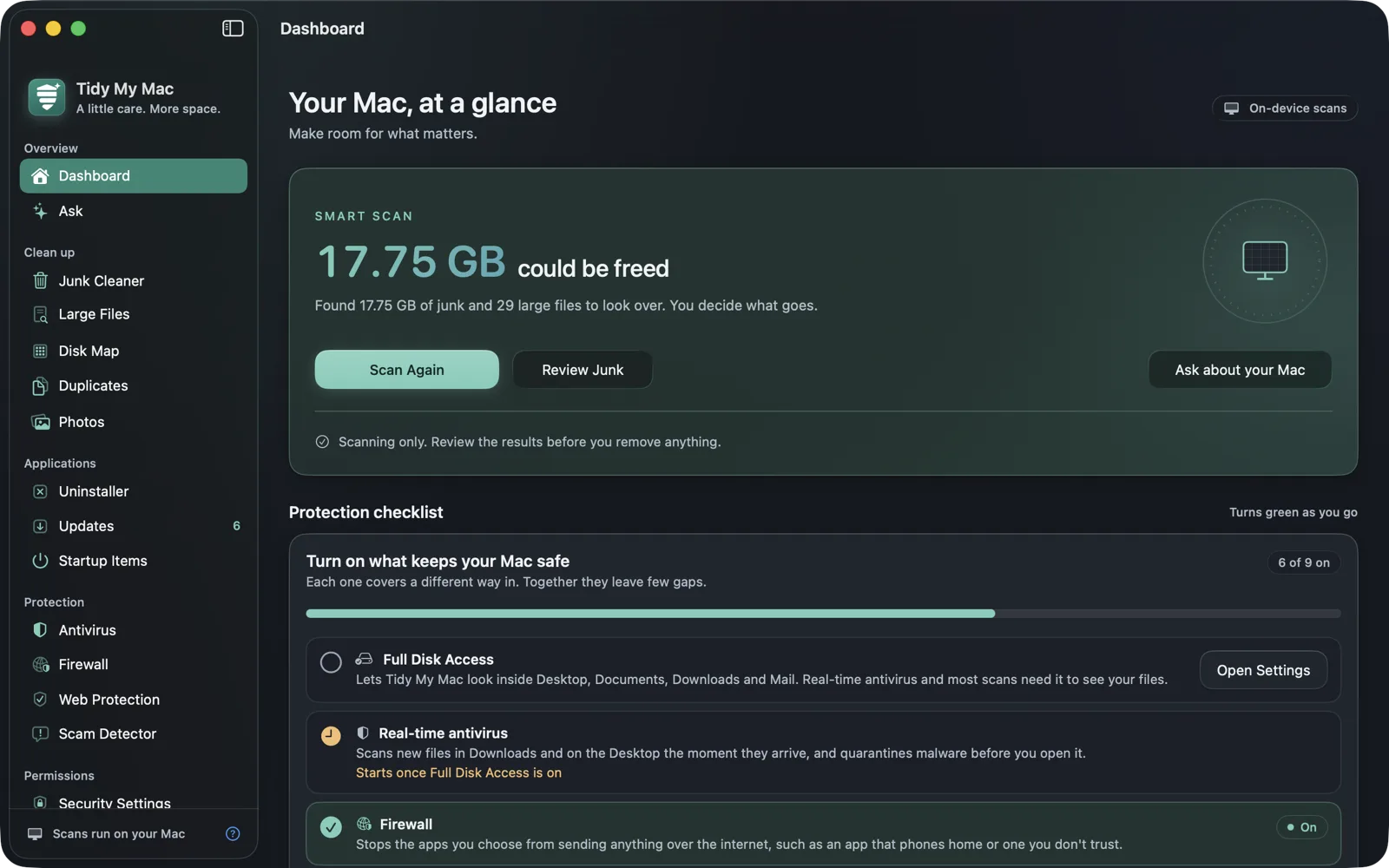
When the scan finishes, the top of the Dashboard shows the space that could be freed: all the junk it found, plus every duplicate copy but one. Large files are listed but not counted in that total, because only you know whether they still matter.
Below it, four cards show what each part of the scan found: Junk & caches, Large files, Duplicates and Disk map, each with the few items behind most of the total. Open a card to review its full list in its own section. The Disk Map card also shows how your disk splits between kinds of files and which folders are the largest.
Further down, the Dashboard shows live CPU, memory, temperature and battery from Performance, how many startup items are on, when you last scanned for malware, and your macOS security score out of 100.
A protection checklist that turns green
The Protection checklist lists the protections worth turning on, Tidy My Mac's own and macOS's, each with a sentence on what it guards against: real-time antivirus, the Firewall, Web Protection, the macOS firewall, FileVault, Gatekeeper, automatic security updates, and opening Tidy My Mac at login so real-time protection is on from the first minute. Each row that is off has a button to turn it on or open the right System Settings page, and it turns green as soon as the protection is on.
Scanning is not cleaning
A Smart Scan only reads. It doesn't move, clean or delete anything. You decide what goes, section by section, after you have seen the list. The scan runs on your Mac, and your files and what the scan found stay there. The Privacy Policy explains what the app reads.
Cleanup history, with Put Back
Every time a section moves files to the Trash or deletes something, it is recorded in the Cleanup history on the Dashboard, with how much space it freed this month and over the past year. Put Back moves items that are still in the Trash back to exactly where they were, either a whole cleanup at once or one file at a time. Items that were deleted outright are marked as deleted, so you always know what can still come back. The history covers the last year.
Scheduled scans, the menu bar and Shortcuts
- A Smart Scan runs when the app opens. You can turn that off in Settings.
- You can also schedule a Smart Scan to run daily or weekly. A scheduled scan only reports what it found in a notification; nothing is cleaned without you.
- The menu bar icon has a Smart Scan button, and Shortcuts and Siri can run one too and tell you how much junk it found.
- If your startup disk runs low on space, Tidy My Mac warns you, and clicking the warning starts a Smart Scan.
Full Disk Access
To see the whole disk, Tidy My Mac asks once for Full Disk Access at first launch. Without it, scans leave out Desktop, Documents and Downloads rather than ask for each folder, and the protection checklist shows Full Disk Access as its first row until it is granted. You can revoke it at any time in System Settings → Privacy & Security → Full Disk Access.
Questions about Dashboard & Smart Scan
No. It only scans and reports. You review each section's results and choose what to remove, and what you move to the Trash can be put back from the Cleanup history.
No. A virus scan reads every file, so it runs only when you start it or on its own schedule. Real-time protection checks new downloads on its own. See Antivirus.
Yes. The Dashboard fills in as each part finishes. Junk, large files and the disk map arrive first; comparing possible duplicates reads their contents and can take a little longer.
Yes, as long as the items are still in the Trash. Put Back in the Cleanup history moves them back to where they were. Once the Trash is emptied, or for things removed outright, they can't be put back.
No. Every scan runs on your Mac, and file names, contents and results stay there. The Privacy Policy lists every request the app makes.
Try every section free for 7 days.
Just your email, no credit card. Then $19.99 for your first year, $59.99 a year after that.
Start your free trial