 Tidy My Mac
System · Performance
Mac performance monitor: see what is slowing down your Mac
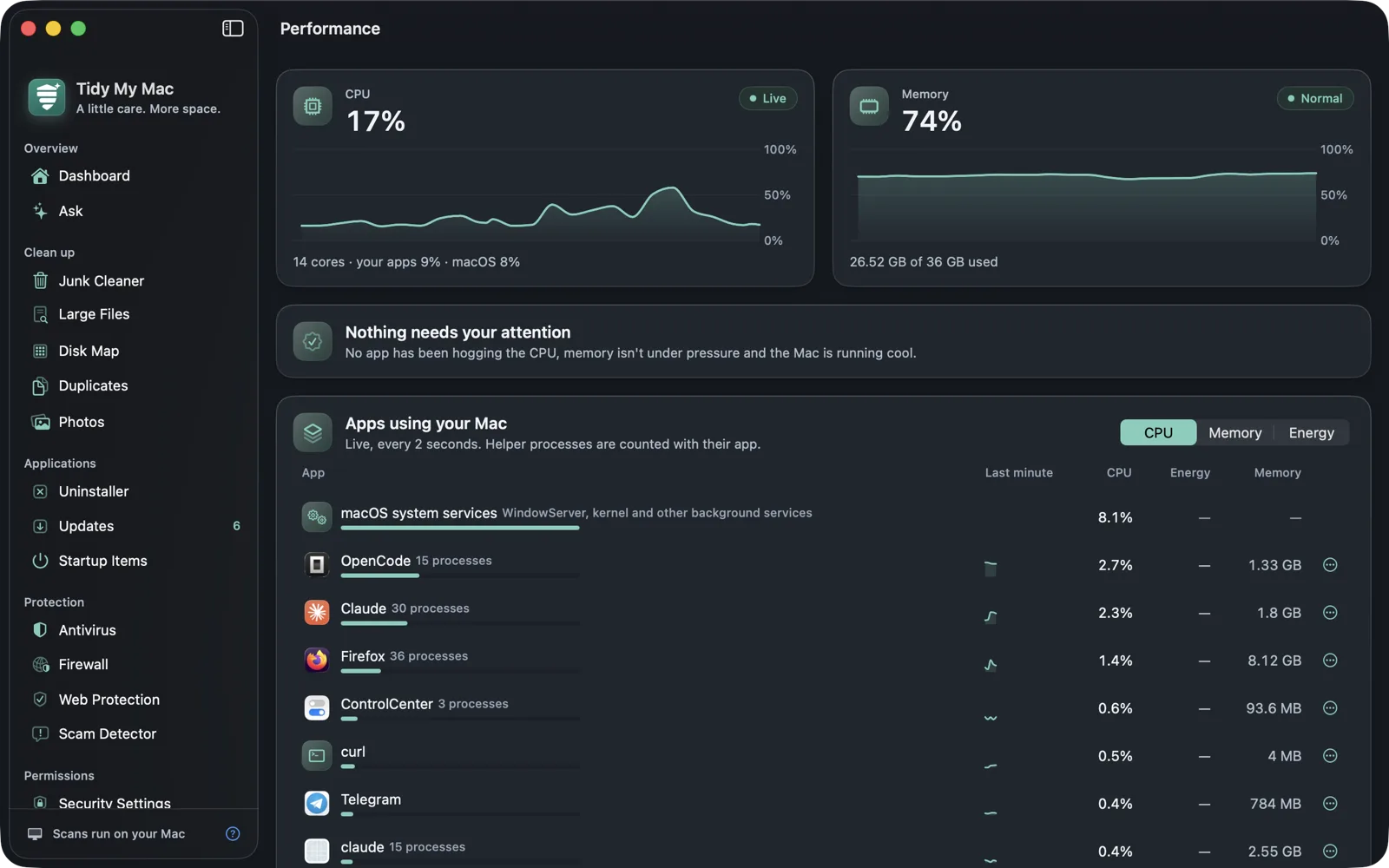
Tidy My Mac's Performance section shows live CPU and memory, which apps are using them with their helper processes counted in, where your memory goes, battery wear, the internal SSD's health and how hot your Mac is running. When something stands out, it says so in plain words and offers to quit the app responsible.
macOS 26 Tahoe or later · No credit card · Everything runs on your Mac
What is slowing down my Mac?
Activity Monitor has the raw numbers, but it lists hundreds of processes, most of them idle parts of macOS, and an app like a browser shows up as a dozen helpers with names you don't recognise. A high memory figure on its own doesn't mean much either: macOS keeps recently used files in memory on purpose and frees that space the moment an app needs it.
What actually slows a Mac down is narrower: an app that keeps the processor busy for minutes, real memory pressure that forces macOS to swap to disk, or heat that makes the processor slow itself down. The Performance section is built to show those, and to name the app behind them.
Live CPU and memory
Two live charts cover the last two minutes; hover over either to see the reading at any moment. The CPU figure is split into what your apps use and what macOS itself uses. The memory figure comes with macOS's own pressure verdict, Normal, Under pressure or Critical, which tells you more than the percentage does.
An Activity Monitor that groups by app
Apps using your Mac updates every 2 seconds and counts each app's helper processes with the app, so a browser is one row, not twelve. Sort it by CPU, Memory or Energy. Each row has a chart of its CPU over the last minute, and Energy shows the app's average power in watts over the time the list has been open, up to an hour.
The list shows the apps that are doing something and hides the idle ones; Show all lists every active app. Processes that run as the system, such as WindowServer and the kernel, appear as one line, so their CPU isn't left unaccounted for.
From each row you can Quit an app, which lets it ask to save your work, Force Quit it after a confirmation, or Show in Finder. macOS's own processes can't be quit from here, since quitting some of them would log you out. For everything else, Open Activity Monitor is one click away.
Plain advice when something is wrong
The Worth a look card watches the live numbers and speaks up only when something is worth acting on. It offers a Quit button next to any app it names.
| What it notices | When |
|---|---|
| An app keeping the CPU busy | The app has averaged most of a processor core for the last 30 seconds, not just a moment's spike. |
| An app using a lot of memory | One app holds a quarter or more of your Mac's RAM. |
| Memory under pressure | macOS reports memory pressure, with the app using the most memory named. |
| Memory moved to disk | Swap reaches 2 GB or an eighth of your RAM, whichever is larger. |
| Your Mac running hot | macOS is slowing the processor down to cool it. |
| Battery or SSD problems | Only when macOS says the battery needs service, or the SSD itself reports a problem. The app never judges wear on its own. |
Where your memory goes
Where your memory goes splits your RAM the way Activity Monitor's Memory tab does: memory your apps are using, Wired memory held by macOS, Compressed memory, Cached files and what is free, plus how much has been swapped to disk. Each part says what it means, and cached files don't count as used, because macOS gives them back instantly.
Battery and SSD health
On a MacBook, Performance shows the battery's condition as macOS rates it, its maximum capacity compared with new, charge cycles against the number it is rated for, how much charge it holds, and its temperature. If macOS recommends service, it says so.
For the internal SSD, it reads the drive's own SMART health log: how much of its rated life is used, how much data has been written, spare space, powered-on hours, and any media errors. This works with internal NVMe drives that answer SMART queries, such as an Apple silicon Mac's SSD; on a Mac where the drive doesn't answer, the card leaves it out rather than show zeros.
Temperature and boot time
The Temperature card shows macOS's thermal state as Cool, Warm, Hot or Very hot, and what each means for speed. Performance also measures how long each restart takes from power-on to the desktop, and keeps a history with your average boot time. To make startup faster, see Startup Items.
Always at a glance
CPU and memory also sit in the menu bar, along with battery and free disk space, and on the Dashboard. And if you'd rather ask than read charts, Ask answers "Why is my Mac slow?" from these same numbers. All of it is measured on your Mac; nothing is sent anywhere, as the Privacy Policy explains.
Questions about Performance
For everyday questions, it is easier to read: helpers are counted with their app, idle processes are hidden, and it explains what it sees. Activity Monitor still lists every process, and Performance opens it with one click.
Because macOS keeps recently used files in memory to speed things up, and frees that space the moment it is needed. Memory pressure is the figure that matters, and Performance shows it next to the percentage.
It doesn't offer a "free up RAM" button, on purpose: emptying macOS's memory cache only makes it fill again. When memory really is short, Performance shows which app is using it, and quitting that app is what helps.
The per-app list is only measured while the Performance screen is open, every 2 seconds. The rest of the time, the app reads overall CPU and memory every 5 seconds for the menu bar and the Dashboard.
No. SSD health comes from the internal drive's own SMART log. External drives, and internal drives that don't answer SMART queries, aren't shown.
Try every section free for 7 days.
Just your email, no credit card. Then $19.99 for your first year, $59.99 a year after that.
Start your free trial