 Tidy My Mac
Clean up · Junk Cleaner
Clean junk files on your Mac: caches, logs and developer leftovers
Tidy My Mac's Junk Cleaner finds the caches, logs, old downloads, leftover installers and developer junk that build up on every Mac, shows how much space each kind takes, and ticks only the ones that are safe to clear. You see every file before anything goes, and what it removes goes to the Trash unless the app tells you otherwise.
macOS 26 Tahoe or later · No credit card · Everything runs on your Mac
What is junk on a Mac, and is it safe to delete?
Apps write a lot of files they don't strictly need. A cache is a copy of something an app could fetch or rebuild, kept so it opens faster next time. Logs record what an app did. Mail keeps a copy of every attachment you open. Xcode keeps build output for every project you have built. None of it is your work, and most of it comes back by itself when it is needed.
So is it safe to delete caches on a Mac? Generally yes: an app whose cache is cleared rebuilds it, and the worst you notice is that the app is a little slower the first time. What isn't safe is guessing. Old downloads may be the only copy of something, an iOS backup may be the only backup of a phone, and Xcode archives hold the symbols you need to read a crash report. That is why the Junk Cleaner treats those categories differently from caches.
Why "System Data" on your Mac is so large
When System Settings shows a big grey System Data bar under storage, much of it is exactly this kind of file: caches and logs in your Library folder, app data, developer files, and local Time Machine snapshots. macOS doesn't list them for you. The Junk Cleaner does, folder by folder, with a size next to each. For everything else that fills the disk, the Disk Map shows where the space goes.
What the Junk Cleaner finds
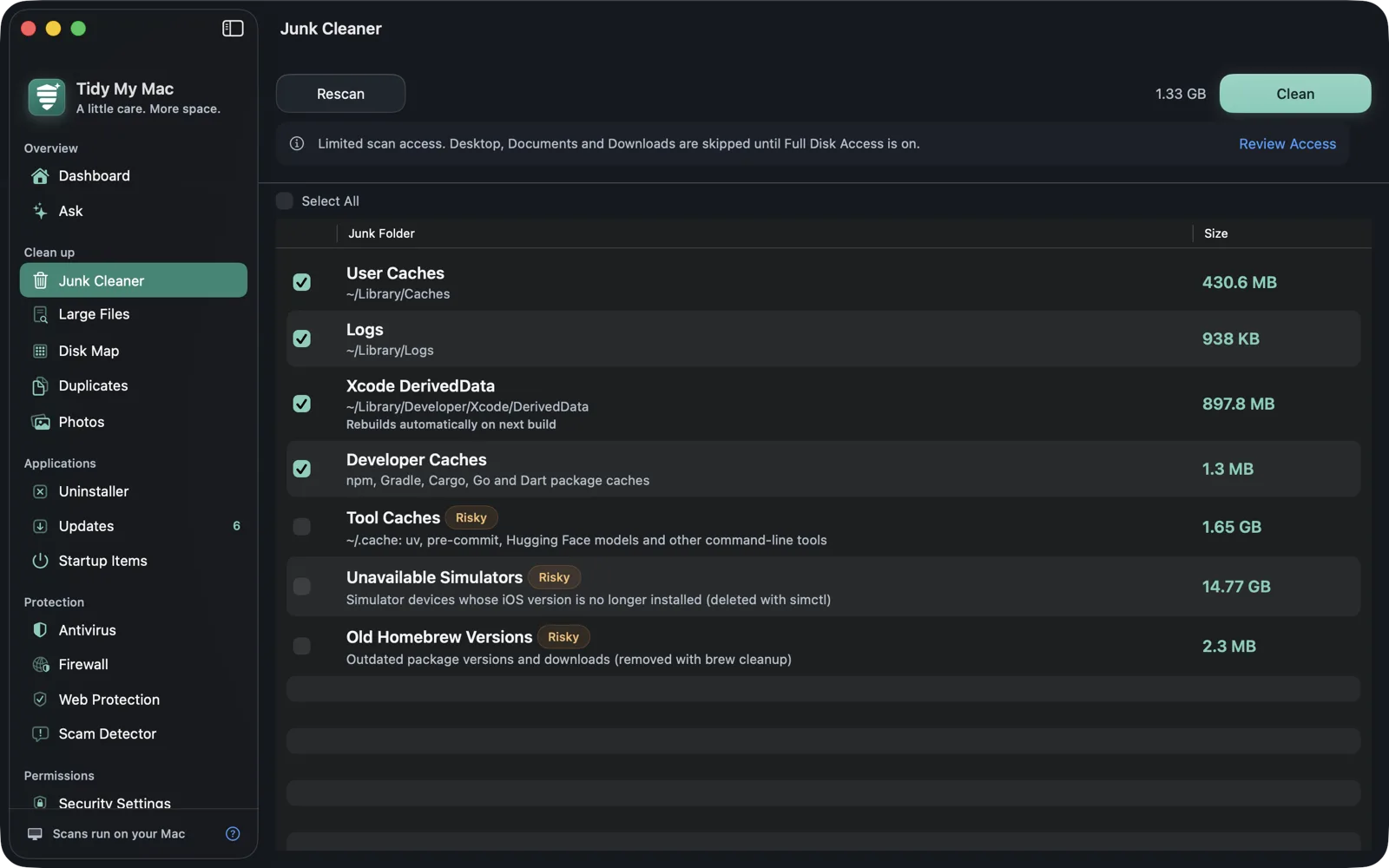
Every category is listed with its size and where it lives. The safe ones are ticked when a scan finishes. The others are marked Risky and stay unticked until you choose them. Categories with nothing in them are hidden.
| Ticked by default | What it is |
|---|---|
| User Caches | Everything in ~/Library/Caches, browser caches included. |
| Logs | ~/Library/Logs. |
| Mail Attachments Cache | Attachments Mail saved when you opened them. |
| Installers of Installed Apps | Disk images and packages in Downloads and on the Desktop for apps you have installed since. |
| Xcode DerivedData | Build output. Xcode rebuilds it on the next build. |
| Xcode Simulator Caches | ~/Library/Developer/CoreSimulator/Caches. |
| Developer Caches | npm, Gradle, Cargo, Go and Dart package caches. |
| iPhone and iPad Firmware | Downloaded .ipsw files. Apple serves every version it still signs. |
| Old JetBrains IDE Versions | Settings and plugins of IDE versions you have since updated, unused for 90 days. The newest version is always kept. |
| Risky, left unticked | What it is |
|---|---|
| Old Downloads | Files in Downloads older than 90 days. |
| Messages Attachments | Photos, videos and files sent and received in Messages. Chats show them as missing unless Messages in iCloud keeps a copy. |
| Installers to Check | Disk images and packages that look like an installed app's. Check each one first. |
| iOS Backups | iPhone and iPad backups in ~/Library/Application Support/MobileSync/Backup. |
| Xcode Archives | Archives older than 30 days. |
| Xcode Device Support | iOS and watchOS device support files. |
| Tool Caches | ~/.cache: uv, pre-commit, Hugging Face models and other command-line tools. |
| Unused node_modules | Dependencies of projects not touched in 90 days. npm install brings them back. |
| Unused Python Environments | Virtual environments and conda environments not touched in 90 days. Recreate them from your requirements or environment files. |
| Unused Rust Build Folders | The target folders of Cargo projects not touched in 90 days. cargo build brings them back. |
| Unavailable Simulators, Unused Simulator Runtimes, Old Homebrew Versions, Docker | Cleaned by their own tools. See below. |
| Trash | What is already in your Trash. |
| Time Machine Snapshots | Local snapshots on your startup disk. |
Old installers, matched to the apps you have
A downloaded .dmg or .pkg is useless once its app is installed, yet it often stays in Downloads for years. Tidy My Mac looks at the disk images, packages and archives sitting directly in Downloads and on the Desktop and matches them to the apps in your Applications folders by name, by the macOS installer receipt, and by the site they were downloaded from. Installers whose app was installed after the download are ticked. Weaker matches go to Installers to Check, and each one says why it was matched. Disk images are never mounted to look inside, and files in subfolders are left alone.
Developer junk: delete Xcode DerivedData, simulators, Homebrew and Docker
On a developer's Mac the biggest junk is often build output. Deleting Xcode DerivedData is safe and is the usual first fix when Xcode misbehaves; it is rebuilt on the next build. Old simulator caches, package-manager caches, and the node_modules folders, Python virtual environments and Rust target folders of projects you haven't opened in months add up quickly too. A project counts as untouched only if nothing in it, apart from the folder being offered, changed in 90 days. Conda environments belong to no project, so one counts as unused when nothing has been installed into it for 90 days; the base environment is never offered. JetBrains IDEs and Android Studio keep a settings and plugins folder for every version you update from; the ones unused for 90 days are ticked, and the newest version of each IDE is never touched.
Four categories are cleaned by the tool that owns them rather than by moving files: unavailable simulators and unused simulator runtimes with simctl, old Homebrew versions with brew cleanup, and Docker with docker system prune. Docker volumes are always kept, because they hold the data your containers keep between runs. Simulator runtimes count as unused after 90 days, and the newest runtime for each platform is always kept. Each of these only appears when the tool is installed and has something to clean.
See every file, then decide
Click any category to see every file in it, with its size, date and path, and move just the ones you pick to the Trash. Before a clean, the confirmation says how much goes to the Trash, where you can still restore it, and names anything that doesn't:
Two categories are permanent. Cleaning the Trash empties it. Deleting Time Machine Snapshots asks once for your administrator password and removes each snapshot date from every mounted disk, external drives included; that can't be undone. Both are unticked until you choose them.
Everything else that goes to the Trash is recorded in the cleanup history on the Dashboard, where you can Put Back items. Bear in mind that macOS only frees the space of trashed files when you empty the Trash.
One scan, four sections
Pressing Scan runs one pass over your disk that fills the Junk Cleaner, Large Files, Disk Map and Duplicates at the same time. It runs on your Mac and nothing about your files is sent anywhere; the Privacy Policy has the details.
Full Disk Access
Old Downloads and the installer categories need to read Downloads and the Desktop, which macOS protects. Until you grant Full Disk Access, the Junk Cleaner leaves those folders out instead of raising a macOS prompt for each, and shows a banner that takes you to the setting.
Questions about Junk Cleaner
Yes, for the caches in your Library folder: apps rebuild them as they need them, and may be a little slower the first time. That is why User Caches is ticked by default, while categories that can hold your own files, such as Old Downloads and iOS Backups, are not.
Files it moves to the Trash, yes: use Put Back in the cleanup history on the Dashboard, or the Trash itself, until you empty it. Emptying the Trash, deleting Time Machine snapshots, and what Docker, Homebrew and simctl clean can't be undone, and the confirmation says so first.
Yes. DerivedData is build output and indexes, and Xcode recreates it on the next build. The first build afterwards takes longer. Xcode Archives and Device Support are different, which is why they are marked Risky.
It frees disk space, which matters most when your disk is nearly full. It doesn't make apps run faster on its own. To see what is actually slowing your Mac down, use Performance.
More in Clean up
Large Files
The biggest files on your disk, labelled by what they are.
Learn more →Disk Map
A treemap of where your space goes. Click in and clear out.
Learn more →Duplicates
Identical files, matched byte for byte, always keeping one copy.
Learn more →Photos
Similar shots, old screenshots and blurry photos, with the best one suggested.
Learn more →Try every section free for 7 days.
Just your email, no credit card. Then $19.99 for your first year, $59.99 a year after that.
Start your free trial