 Tidy My Mac
Permissions · Security Settings
Mac security check: is your Mac set up securely?
Is my Mac secure? The honest first answer is whether macOS's own protections are switched on. Tidy My Mac's Security Settings page checks System Integrity Protection, Gatekeeper, FileVault, the macOS firewall, XProtect and automatic security updates, adds the installed apps that are missing a published security fix, and scores the result out of 100. It only reads these settings; each fix opens the right place in System Settings.
macOS 26 Tahoe or later · No credit card · Everything runs on your Mac
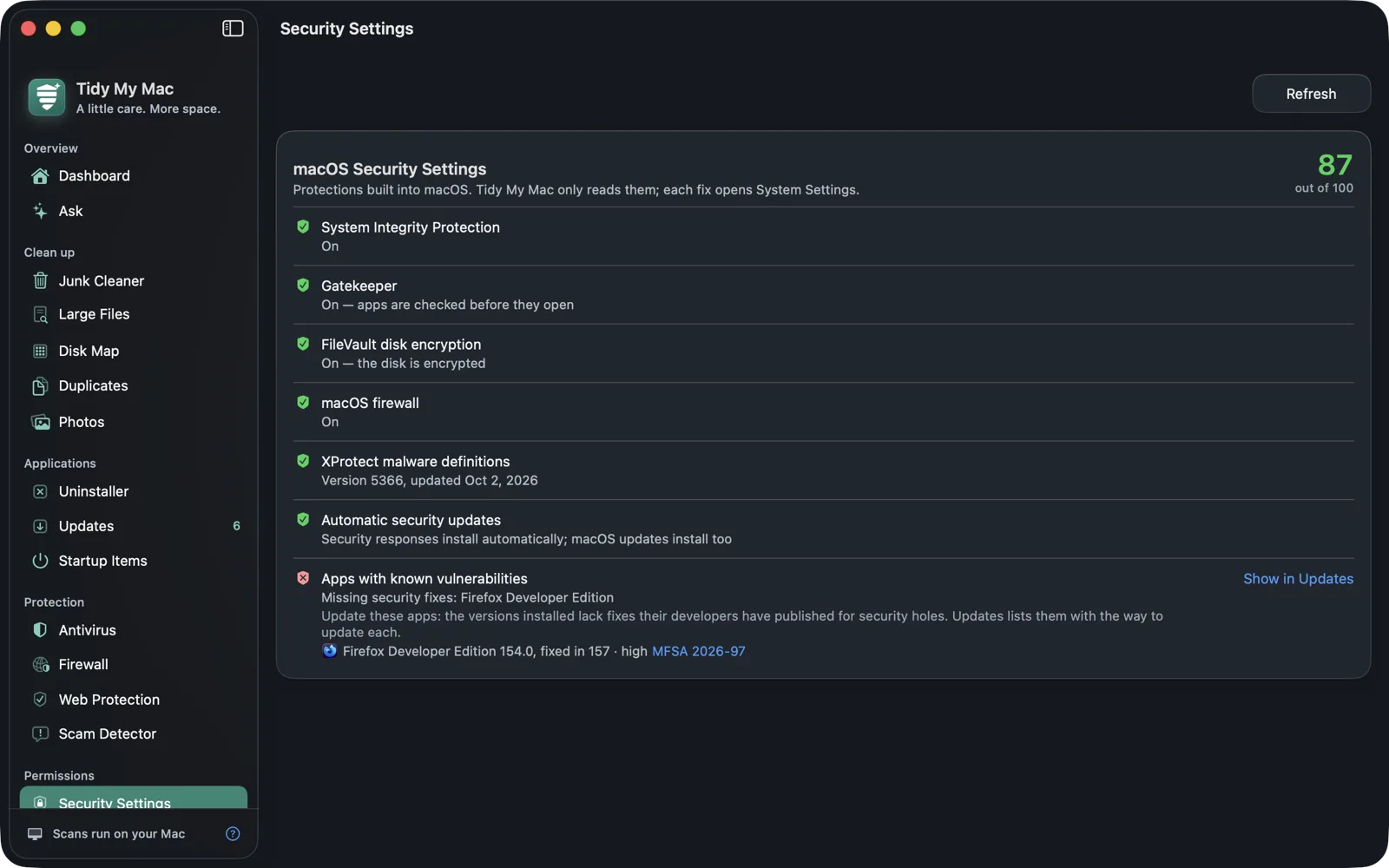
What the Mac security check looks at
macOS ships with strong protections, but several of them can be turned off, and some get turned off on purpose for a one-time install and are then forgotten. Each row on the page is one protection, with what was found and, if it is off, what turning it back on involves.
System Integrity Protection (SIP)
SIP stops anything, including software running as an administrator, from changing macOS's own files and folders. It is why malware can't quietly replace a system tool. Tidy My Mac reads csrutil status: SIP fully on passes, a custom configuration (partly turned off) is a warning, and off is a fail. SIP can only be changed from macOS Recovery, so instead of a link the page explains the steps: start up into Recovery, open Terminal from Utilities, run csrutil enable and restart.
Gatekeeper
Gatekeeper checks an app before it opens the first time: that it comes from the App Store or from a developer identified by Apple, and that Apple has notarized it. To check Gatekeeper status, Tidy My Mac reads spctl --status. If assessments are disabled, any app can open without a check, and the fix opens Privacy & Security at the setting for which apps are allowed.
FileVault
Is FileVault on? It matters most if your Mac is lost or stolen: FileVault encrypts the startup disk, so without your password nobody can read what's on it. Tidy My Mac reads fdesetup status. On passes; off is a fail. While encryption is still in progress it shows a warning that clears when it finishes, and a disk that is being decrypted counts as off.
The macOS firewall
Apple's built-in firewall filters incoming connections to your Mac. Tidy My Mac reads its state, notes whether it is set to block all incoming connections and whether stealth mode is on, and links to Network → Firewall if it is off. This is separate from Tidy My Mac's own Firewall, which is about the connections your apps make out.
XProtect
XProtect is the malware scanner built into macOS. It blocks known malware when you open it, using definitions Apple updates in the background. Tidy My Mac shows the version of XProtect installed and when it was last updated. Definitions more than 60 days old are flagged as out of date, which usually means security updates aren't being installed.
Automatic security updates
Apple delivers XProtect definitions and urgent security fixes through the Install Security Responses and system files option in Software Update. Tidy My Mac reads the Software Update settings: if macOS doesn't check for updates at all, that is a fail; if it checks but security responses wait for you to install them, that is a warning. Whether full macOS updates install by themselves is shown, but doesn't change the result.
Apps with known vulnerabilities
A fully patched macOS doesn't help much if your browser is a year out of date. The last row lists installed apps whose version is missing a fix their developer has published for a security hole, with the fixed version, the severity, whether it is known to be exploited, and a link to the developer's advisory. It is a fail if any of them is high or critical severity, and a warning otherwise. Show in Updates takes you to Updates, which says how to update each one.
The match uses a signed list of advisories from tidymymac.com, downloaded at most once a day. The matching runs on your Mac: nothing about your apps is sent to fetch it.
How the security score works
Each check carries a weight, by how much it protects you:
| Check | Weight |
|---|---|
| System Integrity Protection | 25 |
| Gatekeeper | 20 |
| FileVault | 20 |
| Automatic security updates | 15 |
| macOS firewall | 10 |
| XProtect | 10 |
| Apps with known vulnerabilities | 15 |
The score is the share of those weights you earn, out of 100. A pass earns the full weight, a warning half, a fail nothing. If a check can't be read, for example because a new macOS prints its status differently, it is left out of the score rather than counted against you. The score is green from 85, amber from 60, and red below that, and it also appears on the Dashboard.
Read-only, by design
Tidy My Mac never changes these settings itself. Each one is turned on in System Settings, where macOS asks for your password and shows you what you are changing, and the Fix in System Settings link opens the right page. None of the checks needs administrator rights, and their results stay on your Mac.
Questions about Security Settings
Run csrutil status in Terminal, or open Security Settings in Tidy My Mac, which reads the same status and tells you whether SIP is on, off or partly off.
No. It reads these settings and opens the right page in System Settings, where you turn them on yourself. Security settings should only change where macOS can confirm it's you asking.
A warning counts half: SIP in a custom configuration, FileVault still encrypting, XProtect definitions over 60 days old, security responses that wait for you, or an app missing a lower-severity security fix. Each warning row says what it found.
These protections are the foundation and should stay on. Tidy My Mac's Antivirus adds a second check on what you download, including files that aren't apps.
More in Permissions
Privacy Access
Which apps you allowed your camera, microphone, screen and files.
Learn more →Privacy Cleanup
Browser history, cookies, caches and recent items, in one list.
Learn more →Browser Extensions
Every browser's extensions, rated by the access they have.
Learn more →App Signatures
Apps whose signature is broken, missing or not notarized.
Learn more →Wi-Fi Security
How the network you're on is encrypted, and whether DNS is.
Learn more →Sudo Activity
Commands run with sudo in the last 30 days.
Learn more →Try every section free for 7 days.
Just your email, no credit card. Then $19.99 for your first year, $59.99 a year after that.
Start your free trial